
How to log in
-
Click the "Log in" button.
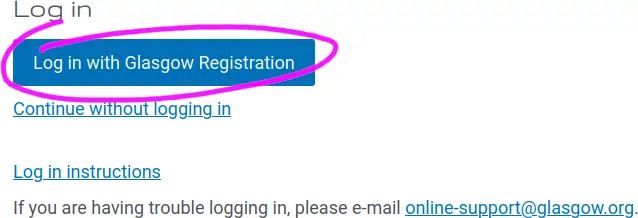
-
Log in to the registration system.
Note: If you have already logged in to the registration system, you will automatically be taken to step 3.
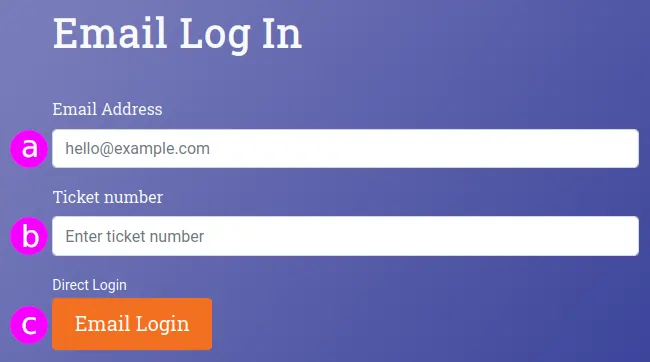
- Enter the email address you used to register for the convention.
- Enter your ticket number. You will be able to find this on your badge and in the e-mail that announced the opening of the portal. Note, this will be the number without the # sign i.e. 0933, not #0933.
- Click "Email Login".
- Check your email for a message from registration. This email will contain a link that you can use to log in to the portal.
-
Click on the "Login" button in the email.
-
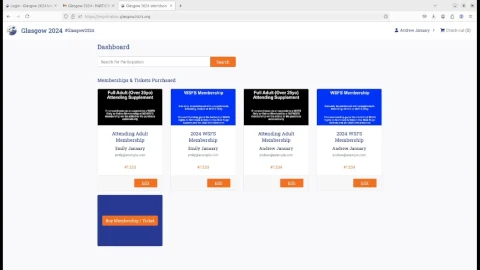
If you see this screen, unfortunately this means the log in has not worked correctly. See What to do if you get to the Registration dashboard.
-
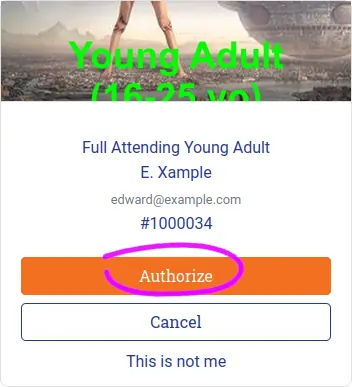
Click the "Authorize" button to allow the portal to access your registration information.
-
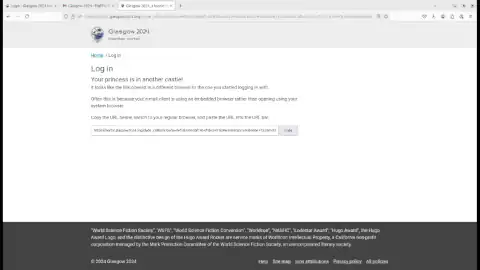
If you see this screen, see What to do if you get the "Your Princess is in another castle" screen.
-
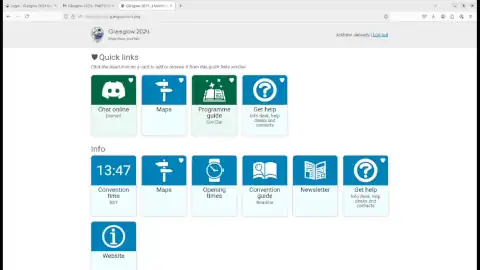
You should now see the member portal.
What to do if you get the "Your Princess is in another castle" screen
This typically happens because you started the log in process in one browser, but the log in button in the e-mail opened in another.
Note, if you are trying to log in with multiple browsers, you must start the log in process from the beginning on each device by going to https://portal-staging.eastercon2026.org.
-
Click the "Copy" button to copy the URL to your clipboard
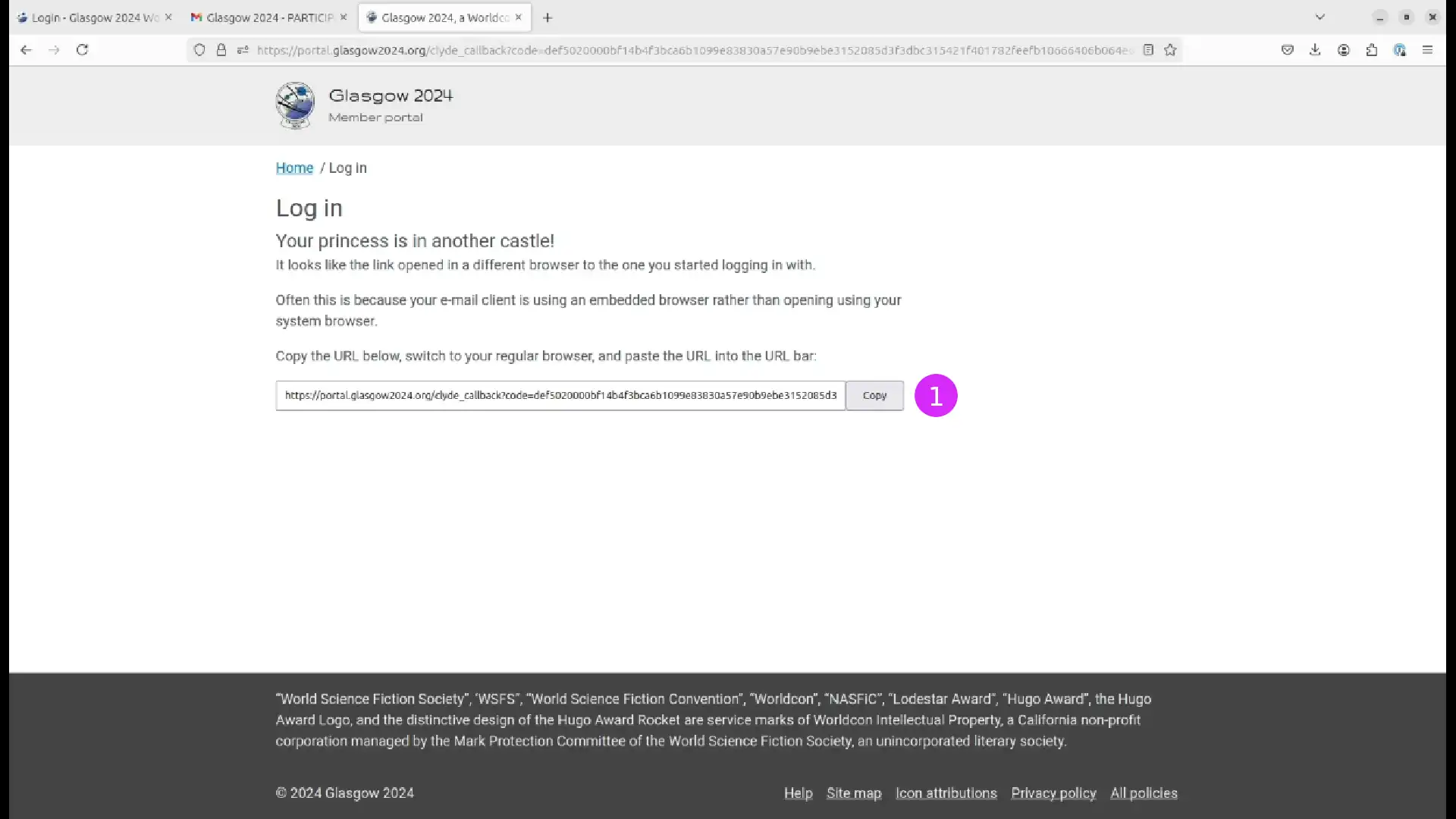
- Go to the browser you started the log in process with
-
Paste the URL into the address bar